자바스크립트 수업 내용 정리
onbeforeprint와 onafterprint

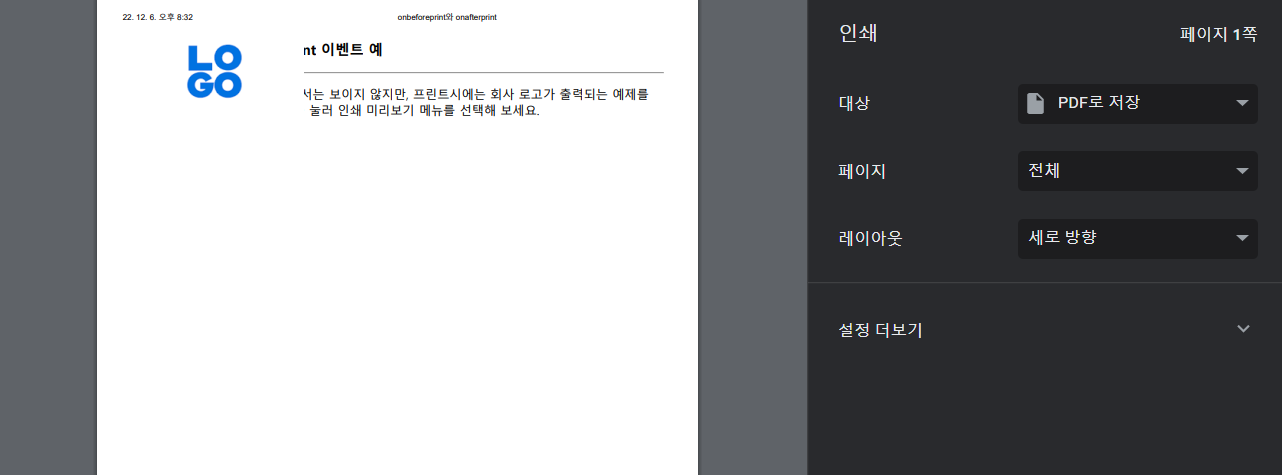
<!DOCTYPE html>
<html>

<head>
    <title>onbeforeprint와 onafterprint</title>
    <style>
        #logoDiv {
            display: none;
            position: absolute;
            left: 0;
            top: 0;
            width: 100%;
            height: 100%;
        }
    </style>
    <script>
        window.onbeforeprint = function (e) {
            logoDiv = document.getElementById("logoDiv");
            logoDiv.style.display = "block"; // block으로 변경. 로고가 화면에 나타나게 함
        }
        window.onafterprint = hideLogo;
        function hideLogo() {
            logoDiv = document.getElementById("logoDiv");
            logoDiv.style.display = "none"; // <div> 영역이 보이지 않게 함
            logoDiv.style.zIndex = -1; // 이미지를 문서의 맨 바닥으로 배치
        }
    </script>
</head>

<body>
    <h3>onbeforeprint, onafterprint 이벤트 예</h3>
    <hr>
    <div id="logoDiv">
        <img src="media/logo.png" alt="이미지 없습니다.">
    </div>
    <p>안녕하세요. 브라우저 윈도우에서는 보이지 않지만, 프린트시에는 회사 로고가 출력되는 예제를
        보입니다. 마우스 오른쪽 버튼을 눌러 인쇄 미리보기 메뉴를 선택해 보세요.</p>
</body>

</html>
웹 페이지 프린트
<!DOCTYPE html>
<html>

<head>
    <title>웹 페이지 프린트</title>
</head>

<body>
    <h3>웹 페이지 프린트</h3>
    <hr>
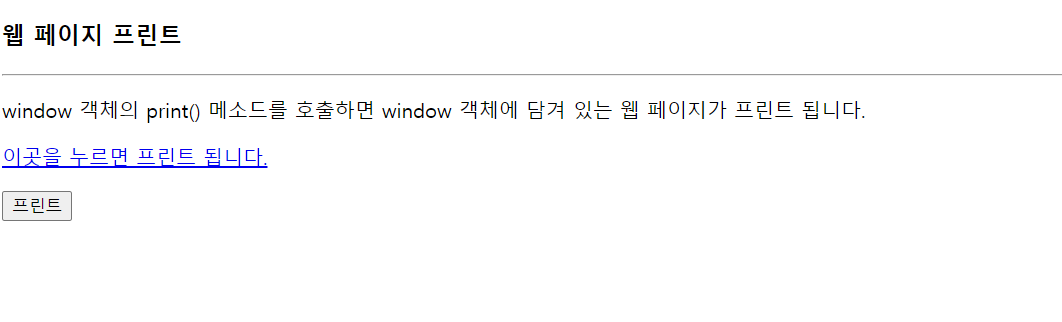
    <p>window 객체의 print() 메소드를 호출하면
        window 객체에 담겨 있는 웹 페이지가 프린트 됩니다.
    <p>
        <a href="javascript:window.print()">
            이곳을 누르면 프린트 됩니다.</a>
    <p>
        <input type="button" value="프린트" onclick="window.print()">
</body>

</html>
setInterval()로 텍스트 회전
<!DOCTYPE html>
<html>

<head>
    <title>setInterval()로 텍스트 회전</title>
</head>

<body>
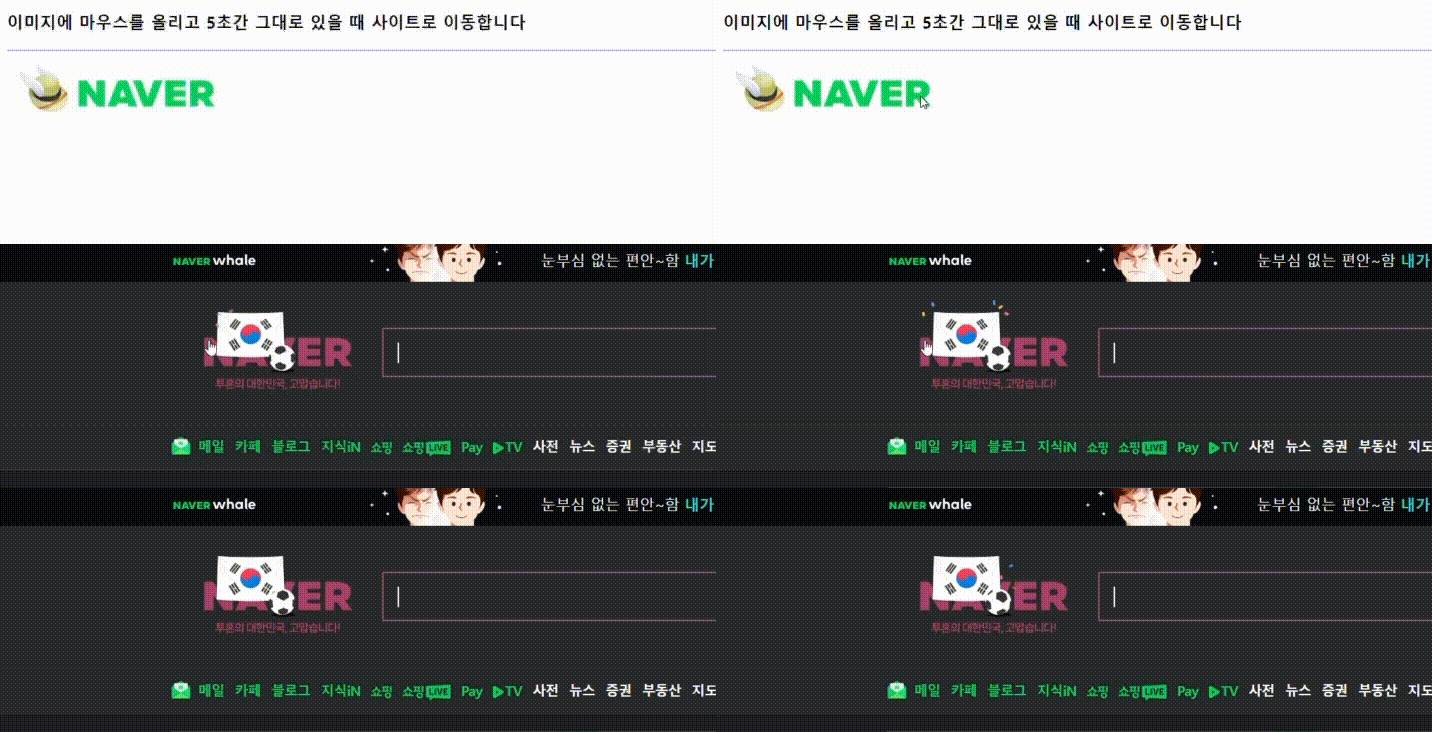
    <h3>텍스트가 자동 회전하며, 마우스로 클릭하면 중단합니다.</h3>
    <hr>
    <div><span id="span" style="background-color:yellow">
            자동 회전하는 텍스트입니다.</span>
    </div>
    <script>
        var span = document.getElementById("span");
        var timerID = setInterval("doRotate()", 200); // 200밀리초 주기로 doRotate() 호출

        span.onclick = function (e) { // 마우스 클릭 이벤트 리스너
            clearInterval(timerID); // 타이머 해제. 문자열 회전 중단
        }

        function doRotate() {
            var str = span.innerHTML;
            var firstChar = str.substr(0, 1);
            var remains = str.substr(1, str.length - 1);
            str = remains + firstChar;
            span.innerHTML = str;
        }
    </script>
</body>

</html>
setTimeout()으로 웹 페이지 자동 연결
<!DOCTYPE html>
<html>

<head>
    <title>setTimeout()으로 웹 페이지 자동 연결</title>
</head>

<body>
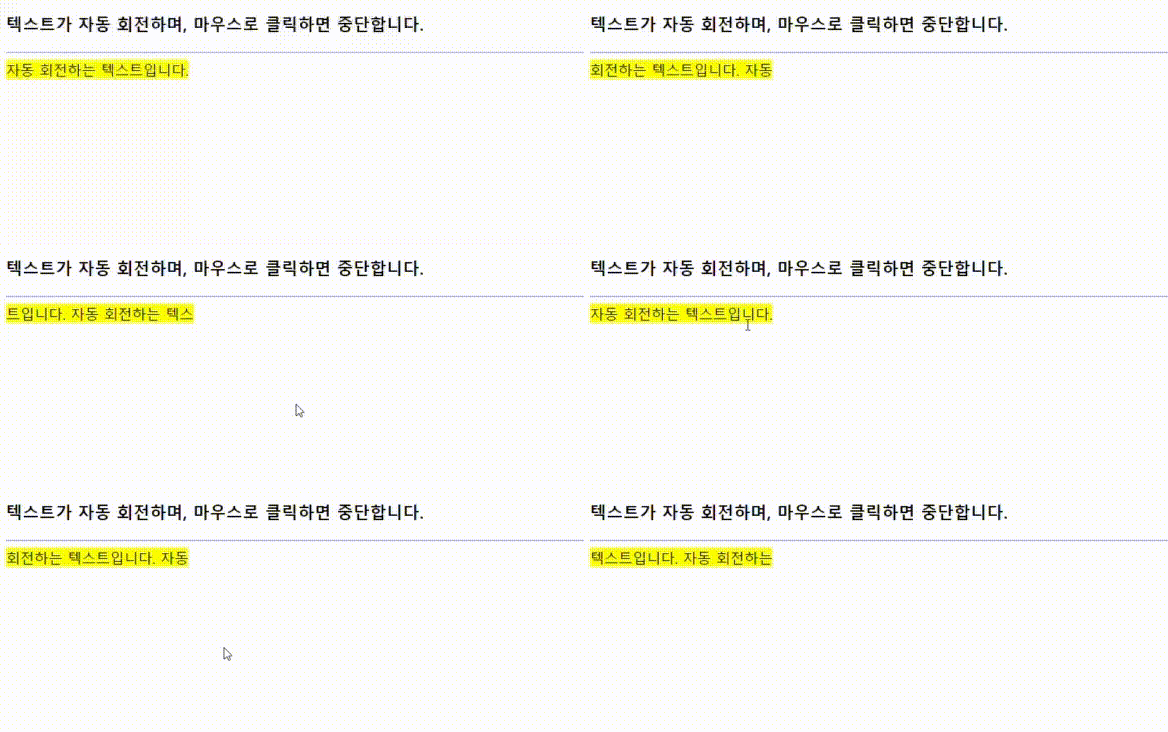
    <h3>이미지에 마우스를 올리고 5초간 그대로 있을 때 사이트로 이동합니다</h3>
    <hr>
    <img id="img" src="media/naver.gif" onmouseover="startTimer(5000)" onmouseout="cancelTimer()">
    <script>
        var timerID = null;
        function startTimer(time) {
            // 타이머 시작
            timerID = setTimeout("load('http://www.naver.com')", time);

            // 이미지에 마우스 올리면 나타내는 툴팁 메시지
            document.getElementById("img").title = "타이머 작동 시작...";
        }
        function cancelTimer() {
            if (timerID != null)
                clearTimeout(timerID); // 타이머 중단
        }
        function load(url) {
            window.location = url; // 현재 윈도우에  url 사이트 로드
        }
    </script>
</body>

</html>
웹 페이지의 자동 스크롤
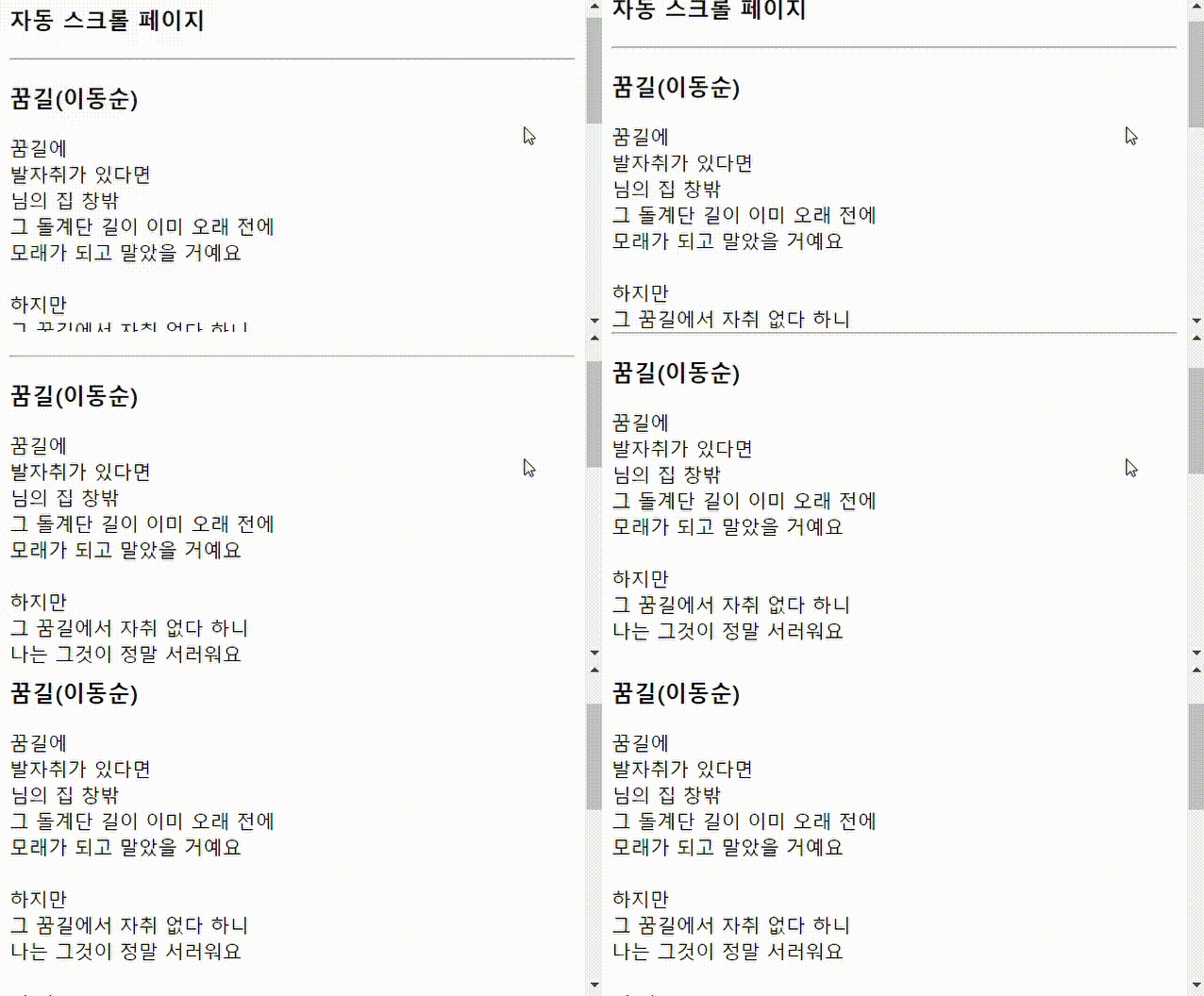
<!DOCTYPE html>
<html>

<head>
    <title>웹 페이지의 자동 스크롤</title>
    <script>
        function startScroll(interval) {
            setInterval("autoScroll()", interval);
        }

        function autoScroll() {
            window.scrollBy(0, 10); // 10픽셀 위로 이동
        }
    </script>
</head>

<body onload="startScroll(1000)">
    <h3>자동 스크롤 페이지</h3>
    <hr>
    <h3>꿈길(이동순)</h3>
    꿈길에<br>
    발자취가 있다면<br>
    님의 집 창밖<br>
    그 돌계단 길이 이미 오래 전에<br>
    모래가 되고 말았을 거예요<br><br>
    하지만<br>
    그 꿈길에서 자취 없다 하니<br>
    나는 그것이 정말 서러워요<br><br>
    이 밤도<br>
    나는 님의 집 창밖<br>
    그 돌계단 위에 홀로 서서<br>
    혹시라도 님의 목소리가 들려올까<br>
    고개 숙이고 엿들어요<br>
    꿈길에<br>
    발자취가 있다면<br>
    님의 집 창밖<br>
    그 돌계단 길이 이미 오래 전에<br>
    모래가 되고 말았을 거예요<br><br>
    하지만<br>
    그 꿈길에서 자취 없다 하니<br>
    나는 그것이 정말 서러워요<br><br>
    이 밤도<br>
    나는 님의 집 창밖<br>
    그 돌계단 위에 홀로 서서<br>
    혹시라도 님의 목소리가 들려올까<br>
    고개 숙이고 엿들어요<br>
</body>

</html>
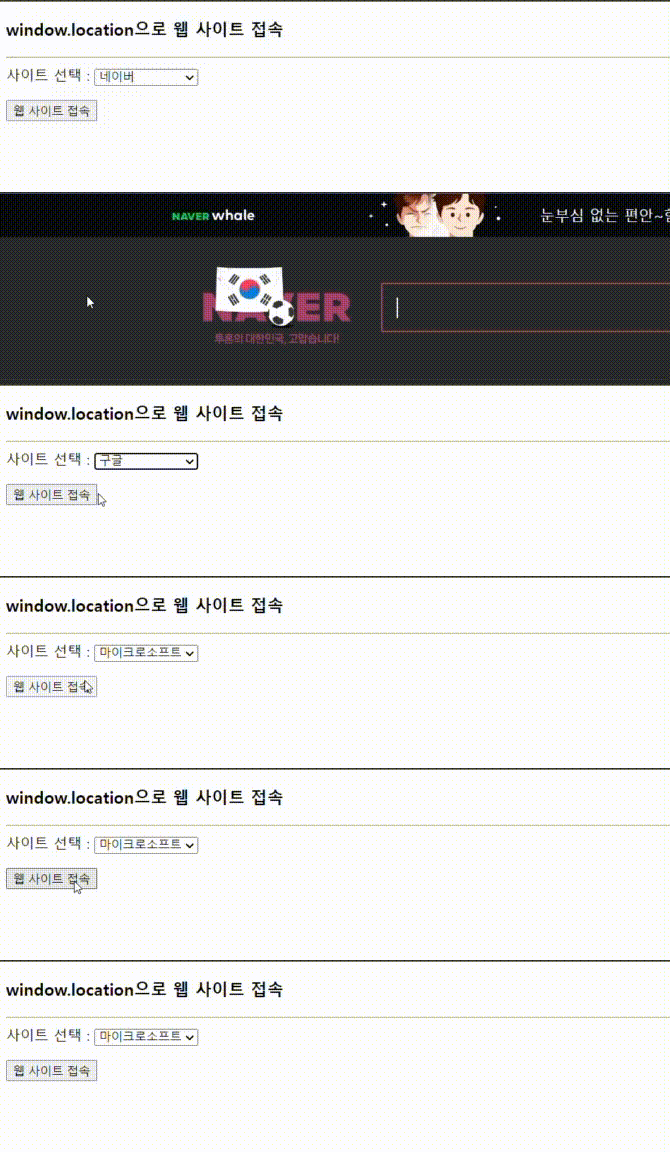
window.location으로 웹 사이트 접속
<!DOCTYPE html>
<html>

<head>
    <title>window.location으로 웹 사이트 접속</title>
    <script>
        function load() {
            var select = document.getElementById("site");
            window.location = select.options[select.selectedIndex].value;
        }
    </script>
</head>

<body>
    <h3>window.location으로 웹 사이트 접속</h3>
    <hr>
    사이트 선택 :
    <select id="site">
        <option value="http://www.naver.com" selected>네이버
        <option value="http://www.google.com">구글
        <option value="http://www.microsoft.com">마이크로소프트
    </select>
    <p>
        <button onclick="load()">웹 사이트 접속</button>
</body>

</html>
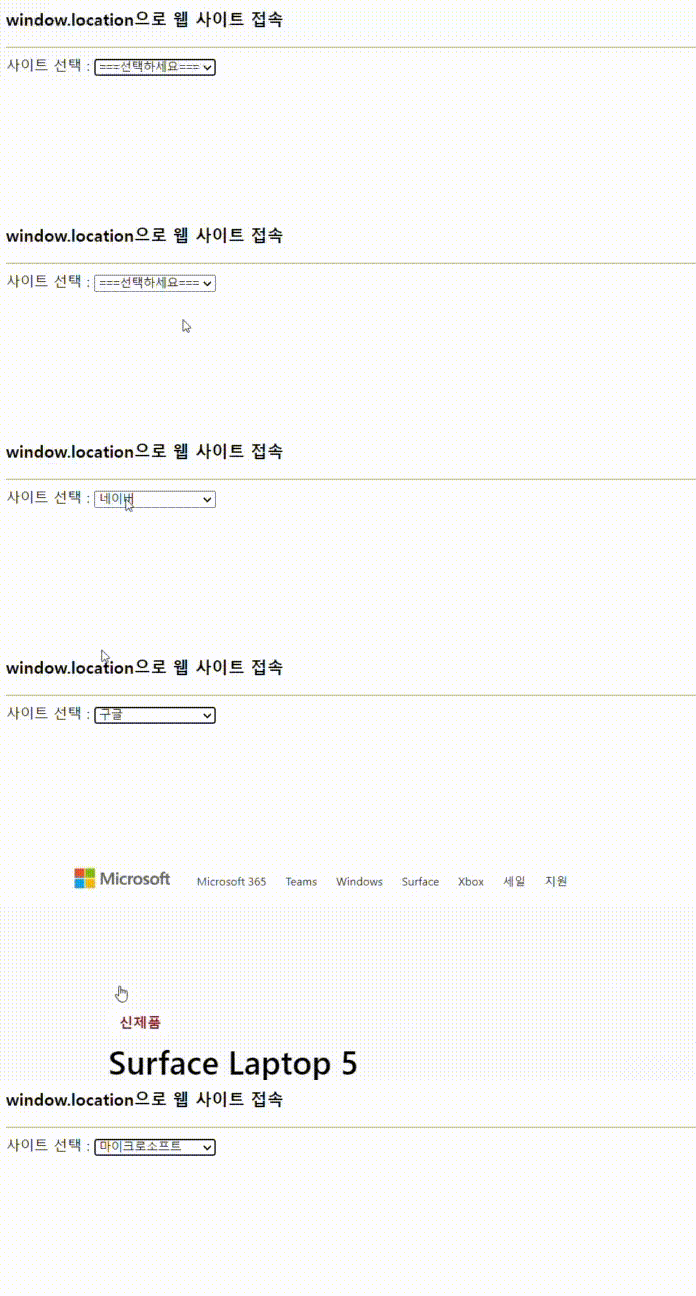
option을 클릭하여 웹 페이지 접속하기
<!DOCTYPE html>
<html>

<head>
    <title>window.location으로 웹 사이트 접속</title>
    <script>
        function load() {
            var select = document.getElementById("site");
            window.location = select.options[select.selectedIndex].value;
        }
    </script>
</head>

<body>
    <h3>window.location으로 웹 사이트 접속</h3>
    <hr>
    사이트 선택 :
    <select id="site" onchange="if(this.value) window.open(this.value);">
        <option value="select" selected>===선택하세요===
        <option value="http://www.naver.com" >네이버
        <option value="http://www.google.com">구글
        <option value="http://www.microsoft.com">마이크로소프트
    </select>

</body>

</html>
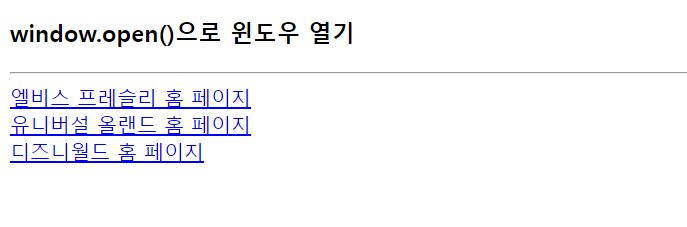
윈도우 열기
<!DOCTYPE html>
<html>

<head>
    <title>윈도우 열기</title>
    <script>
        function load(URL) {
            window.open(URL, "myWin", "left=300,top=300,width=400,height=300");
        }
    </script>
</head>

<body>
    <h3>window.open()으로 윈도우 열기</h3>
    <hr>
    <a href="javascript:load('http://www.graceland.com')">
        엘비스 프레슬리 홈 페이지</a><br>
    <a href="javascript:load('http://www.universalorlando.com')">
        유니버설 올랜드 홈 페이지</a><br>
    <a href="javascript:load('http://www.disneyworld.com')">
        디즈니월드 홈 페이지</a><br>

</body>

</html>
윈도우 닫기
<!DOCTYPE html>
<html>

<head>
    <title>윈도우 닫기</title>
    <script>
        var newWin = null; // 새로 연 윈도우 기억
        function load(URL) {
            newWin = window.open(URL, "myWin", "left=300,top=300,width=400,height=300");
            console.log(newWin);
        }
        function closeNewWindow() {
            if (newWin == null || newWin.closed) // 윈도우가 열리지 않았거나 닫힌 경우
                return; // 윈도우가 없는 경우 그냥 리턴
            else
                newWin.close(); // 열어 놓은 윈도우 닫기
        }
    </script>
</head>

<body>
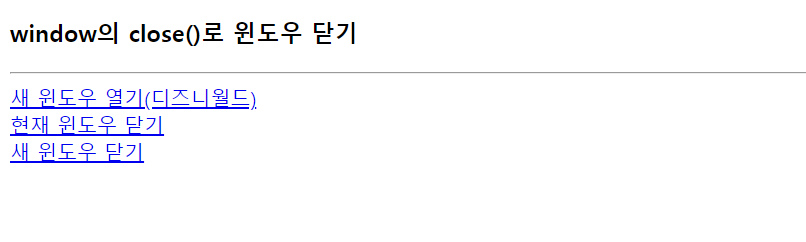
    <h3>window의 close()로 윈도우 닫기</h3>
    <hr>
    <a href="javascript:load('http://www.disneyworld.com')">
        새 윈도우 열기(디즈니월드)</a><br>
    <a href="javascript:window.close()">
        현재 윈도우 닫기</a><br>
    <a href="javascript:closeNewWindow()">
        새 윈도우 닫기</a>
</body>

</html>
윈도우의 위치와 크기 조절
<!DOCTYPE html>
<html>

<head>
    <title>윈도우의 위치와 크기 조절</title>
</head>

<body>
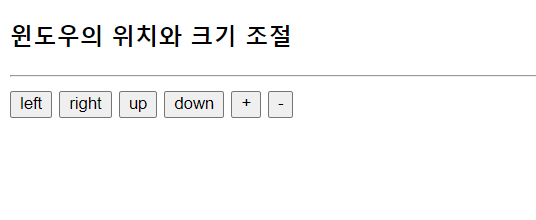
    <h3>윈도우의 위치와 크기 조절</h3>
    <hr>
    <button onclick="window.moveBy(-10, 0)">left</button>
    <button onclick="window.moveBy(10, 0)">right</button>
    <button onclick="self.moveBy(0, -10)">up</button>
    <button onclick="moveBy(0, 10)">down</button>
    <button onclick="resizeBy(10, 10)">+</button>
    <button onclick="resizeBy(-10, -10)">-</button>
</body>

</html>
API 연결하여 오늘의 날씨 구하기
<!DOCTYPE html>
<html lang="en">

<head>
    <meta charset="UTF-8">
    <meta http-equiv="X-UA-Compatible" content="IE=edge">
    <meta name="viewport" content="width=device-width, initial-scale=1.0">
    <title>Document</title>

</head>

<body>
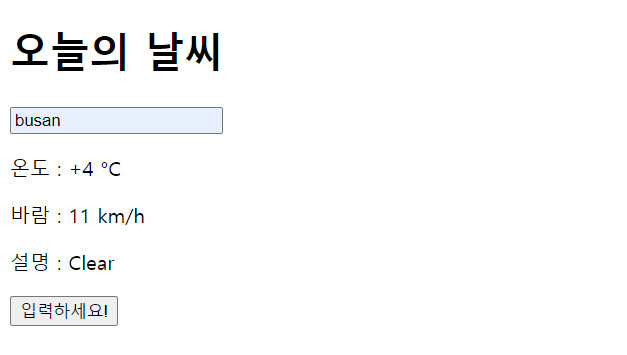
    <h1>오늘의 날씨</h1>
    <input type="text" id="city">
    <p id="temperature"></p>
    <p id="wind"></p>
    <p id="description"></p>

    <script>
        function getweather() {
            let city = document.getElementById("city").value;
            fetch('http://goweather.herokuapp.com/weather/' + city)
                .then((response) => response.json())
                .then((data) => {
                    document.getElementById("temperature").innerHTML =  "온도 : " + data['temperature']
                    document.getElementById("wind").innerHTML = "바람 : " + data['wind']
                    document.getElementById("description").innerHTML = "설명 : " + data['description']

                });

        }

    </script>
        <button onclick="getweather()">입력하세요!</button>
</body>

</html>

Leave a comment